Two-Factor Authentication (2FA) adds an extra layer of security to your Wuxiaworld account by requiring a verification code from an authenticator app when signing in.
Note: 2FA can only be configured on the Wuxiaworld website.
Enable 2FA
Log in to the Wuxiaworld website.
Go to Profile → Settings → Security.
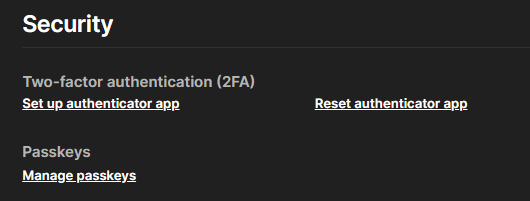
Click Set up authenticator app.
Scan the QR code using an authenticator app (e.g., Google Authenticator, Microsoft Authenticator, or Authy).
Enter the verification code generated by the app.
Click Confirm to enable 2FA.
Recovery Codes
After enabling 2FA, you will receive a set of recovery codes.
Store these codes in a safe place.
Each code can only be used once.
Recovery codes can be used if you lose access to your authenticator app or device.
If you lose both your authenticator device and recovery codes, you may lose access to your account.
Log In Using a Recovery Code
If you cannot access your authenticator app:
Select Use a recovery code during login.
Enter one of your unused recovery codes.
Complete the login process.
Reset Authenticator App
Use Reset authenticator app if you need to set up 2FA on a new device.
Go to Profile → Settings → Security.
Click Reset authenticator app.
Complete the setup process again using your new device.
Resetting your authenticator app invalidates your current app. You must verify a new authenticator app to continue using 2FA.
Resetting your authenticator app does not generate new recovery codes. Your existing recovery codes will remain valid until they are replaced.
Reset Recovery Codes
To generate a new set of recovery codes:
Go to Profile → Settings → Security.
Click Reset recovery codes.
Generating new recovery codes does not change the authenticator app currently linked to your account. Resetting recovery codes generates a new set of recovery codes and invalidates all previously generated recovery codes.
Disable 2FA
Go to Profile → Settings → Security.
Click Disable 2FA.
Confirm the action.
You can re-enable 2FA at any time by setting up an authenticator app again.
Disabling and re-enabling 2FA does not generate new recovery codes. Unless you have reset your recovery codes, the same recovery codes generated when 2FA was first enabled will continue to be used.
Lost Access to Your Authenticator and Recovery Codes
If you lose access to both your authenticator app and recovery codes, Wuxiaworld Support cannot disable 2FA upon request alone. However, if you have purchase history on your account, Support may be able to verify your ownership and assist with disabling 2FA. If you need assistance, please contact Support and provide any relevant purchase information for verification.
To avoid losing access to your account, be sure to save your recovery codes when enabling 2FA.
Was this article helpful?
That’s Great!
Thank you for your feedback
Sorry! We couldn't be helpful
Thank you for your feedback
Feedback sent
We appreciate your effort and will try to fix the article